Getting started guide · Tutorial 4 of 5 · 4 min read
Keep track as it fills
Once your link is out, the work mostly takes care of itself. This tutorial shows where to look to see how it’s going, and what happens on its own when plans change, so you know what to expect before it happens.
- 1
See how full it is at a glance
Open your schedule from the Schedules page. The bar at the top counts every spot: how many are filled, how many people you still need, and whether anyone has asked for a sub.
Good to know: “Filled” counts against the fewest you need. A job set to 2–4 people counts as filled at 2, but still welcomes 2 more.
Tap the picture to see it bigger.
- 2
Check any day on the calendar
Each day on the calendar is colored: pink still has open spots, yellow means someone has asked for a sub, and green is full. Your volunteers see the same colors on their side. Click a day to see exactly who’s coming and what’s still open.
Further down, the grid shows every job and date side by side, the same as when you built it, now with names filled in.
Tap the picture to see it bigger.
- 3
When someone needs a sub
You don’t have to find the replacement. Here’s what happens:
- The volunteer clicks Need a sub? in their confirmation or reminder email, and presses Ask for a sub.
- Everyone else on the schedule is emailed and asked to cover it. Each person gets their own email, so nobody sees anyone else’s address.
- The first person to press Yes, I’ll cover it takes the shift. Both volunteers are told, and you get an email saying who’s now coming.
What you’ll see: the day turn yellow on your calendar while the request is open, and the volunteer’s name marked needs a sub. The shift stays theirs until someone takes it, so it never sits empty.
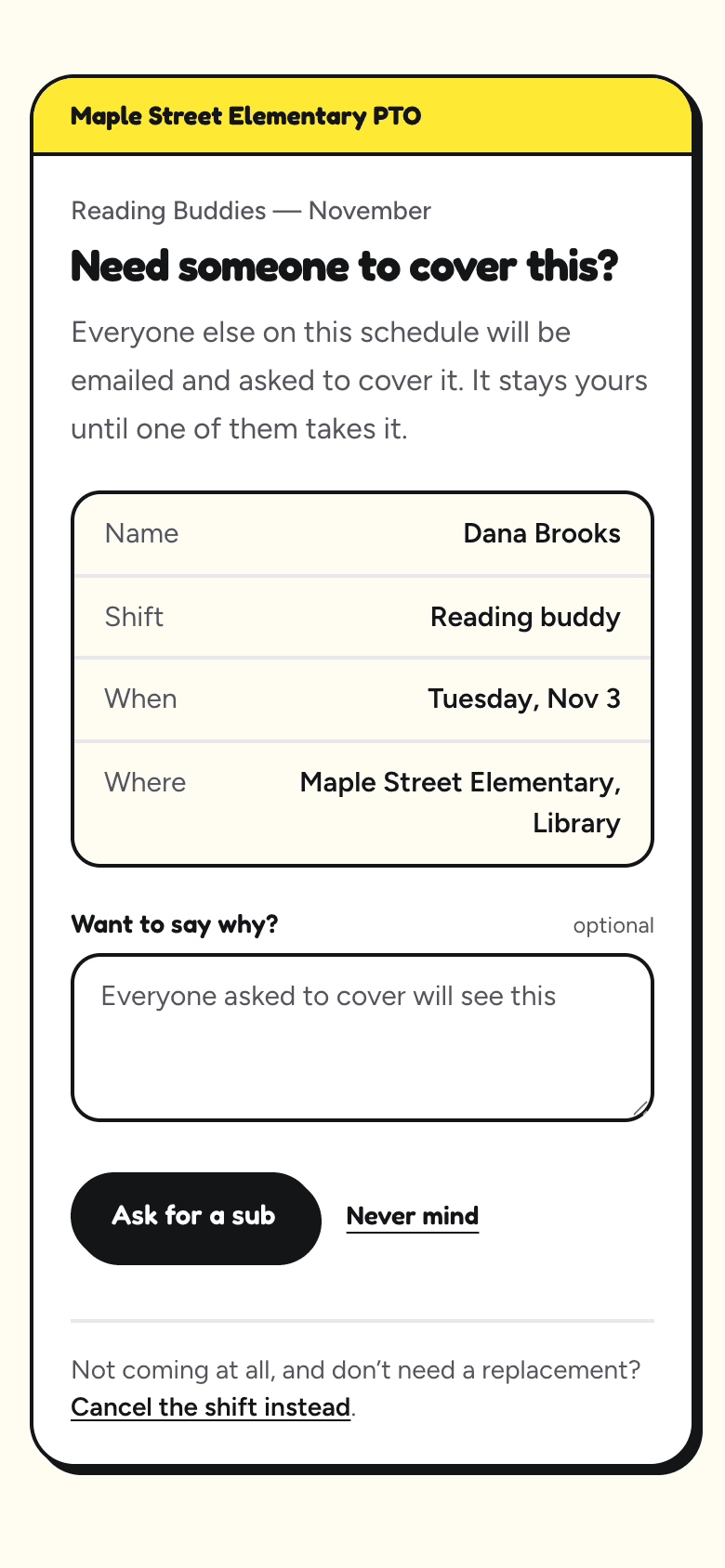
The volunteer who can't make it presses Ask for a sub. 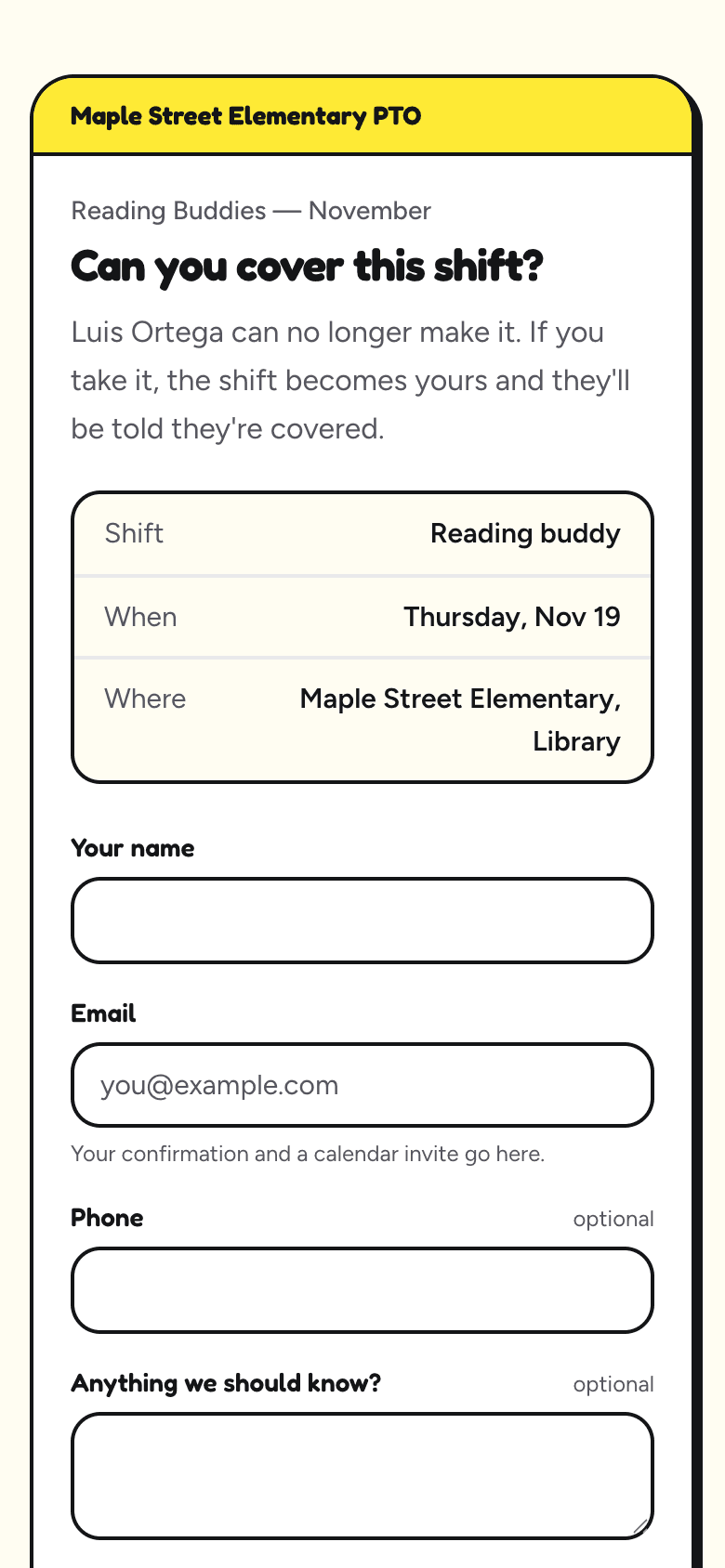
Everyone else on the schedule gets an email with this page. - 4
When someone cancels
If a volunteer simply can’t come and doesn’t need a replacement, they click Cancel in their email and confirm. Their spot opens up again on the sign-up page straight away, and you get an email letting you know.
You can also take someone off yourself: press the ✕ next to their name in the grid. They’re sent a short email saying the shift was cancelled, and the event is removed from their calendar.
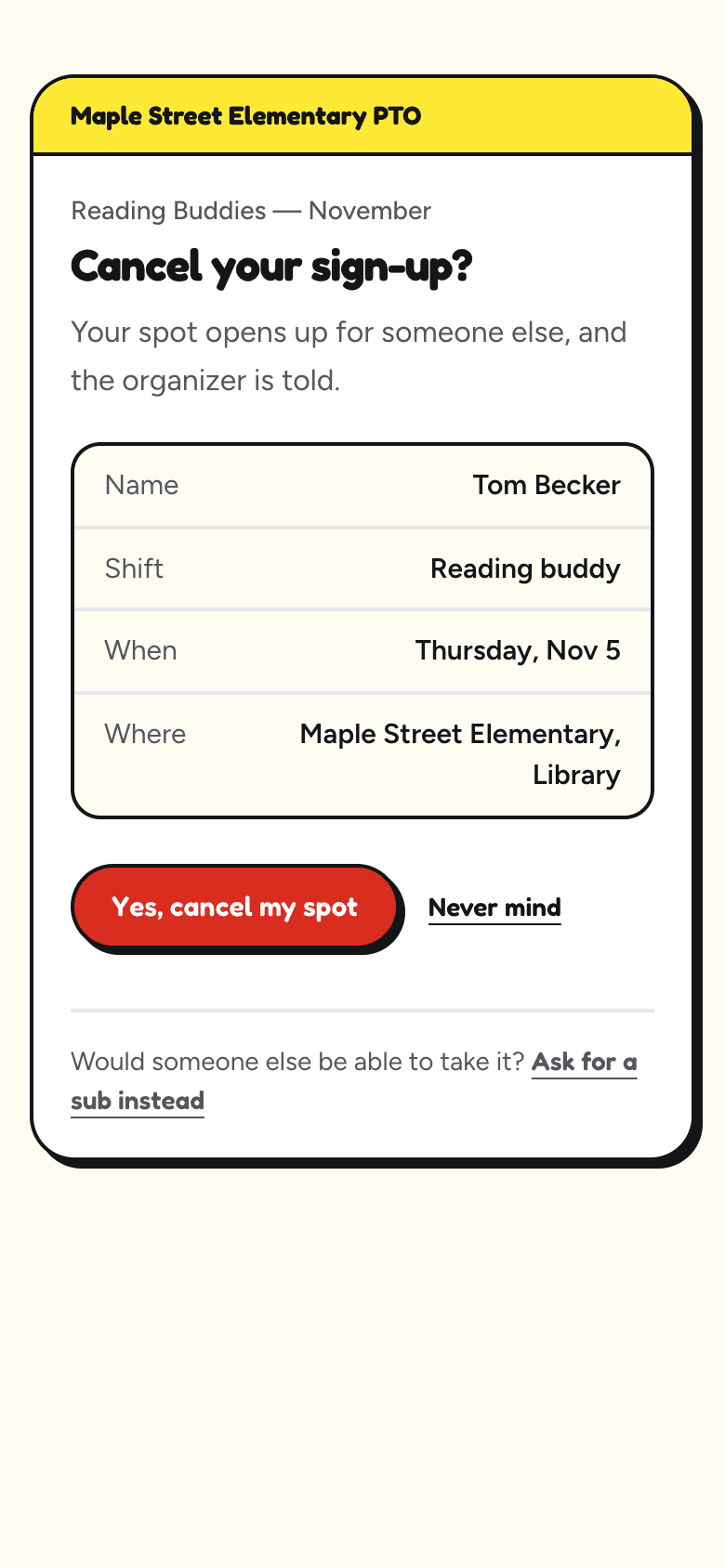
- 5
Reminders go out on their own
Every volunteer gets a reminder email the day before their shift, automatically. You don’t need to set anything up or press anything.
Good to know: jobs from the Anytime tasks section have no set day, so they don’t get a reminder. The volunteer’s calendar invite covers those instead.
- 6
Print the list or download it
At the top of your schedule’s page:
- Print gives a clean sign-in sheet for the front desk or the clipboard on the day.
- Export CSV downloads everyone’s name, email and shift as a spreadsheet you can open in Excel or Google Sheets.
Good to know: if a job needs paperwork (a route map, a shopping list, a pickup confirmation), attach a PDF in the Documents for volunteers box at the bottom of the page. The people on that job get it by email with their confirmation and their reminder.
What Print gives you: a plain table that fits on paper. Tap the picture to see it bigger.