Getting started guide · Tutorial 3 of 5 · 3 min read
Share your link, and what volunteers see
Your schedule is ready. Now you send people one link, and they sign themselves up. This tutorial shows where to find the link, how to send it, and exactly what your volunteers see on their phone, so you can answer their questions with confidence.
- 1
Copy your link
Open your schedule from the Schedules page. Near the top is a box called Share this link with your volunteers. Press Copy.
What you’ll see: the button changes to Copied ✓ for a moment. The link is now ready to paste.
Good to know: each schedule has its own link, and it never changes. If you add a date or a job later, the same link shows it. There’s nothing to resend.
Tap the picture to see it bigger.
- 2
Try it yourself first
Paste the link into a new browser tab and look around as if you were a volunteer. Nothing is booked until someone types their name and presses Confirm sign-up, so you can tick shifts and press Continue without signing anyone up.
- 3
Send it the way you already reach people
Paste the link anywhere your volunteers will see it:
- an email to your volunteer list
- a group text, WhatsApp or Facebook group
- the school newsletter, the church bulletin, the library’s website
Not sure what to write? Start from this and change it to suit you:
A message you can copyHi everyone, We need reading buddies for November! Pick the days that work for you here: [paste your link here] It takes about a minute, and you don't need to make an account. You'll get an email confirming your shifts, plus a reminder the day before. Thank you!
- 4
What your volunteers see
Volunteers never make an account or download an app. On their phone it’s four quick screens:
- They only see the shifts that still need people, so they go straight to the gaps.
- They can take several shifts at once.
- They can only take one job per day, so nobody is booked in two places at the same time.
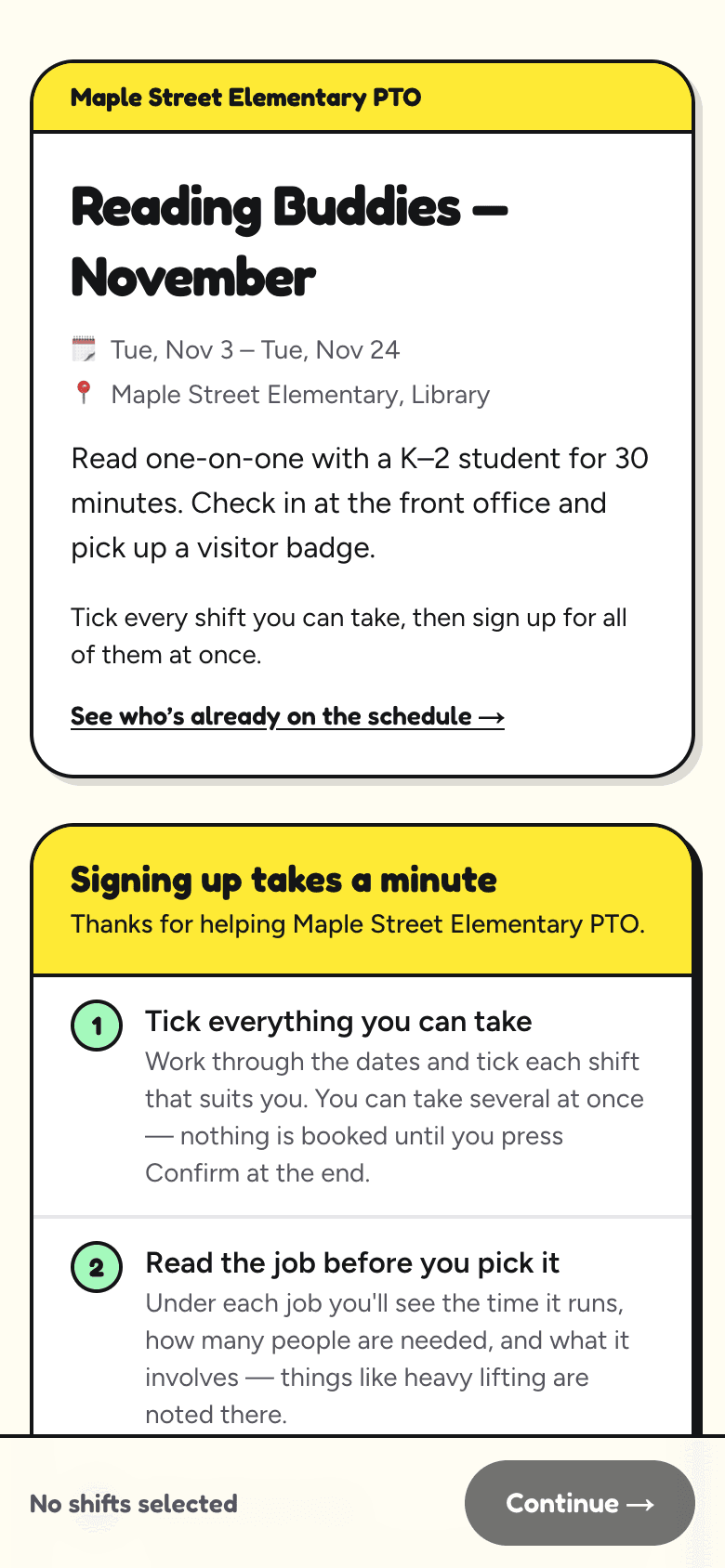
1. They open your link. A short box explains how it works. 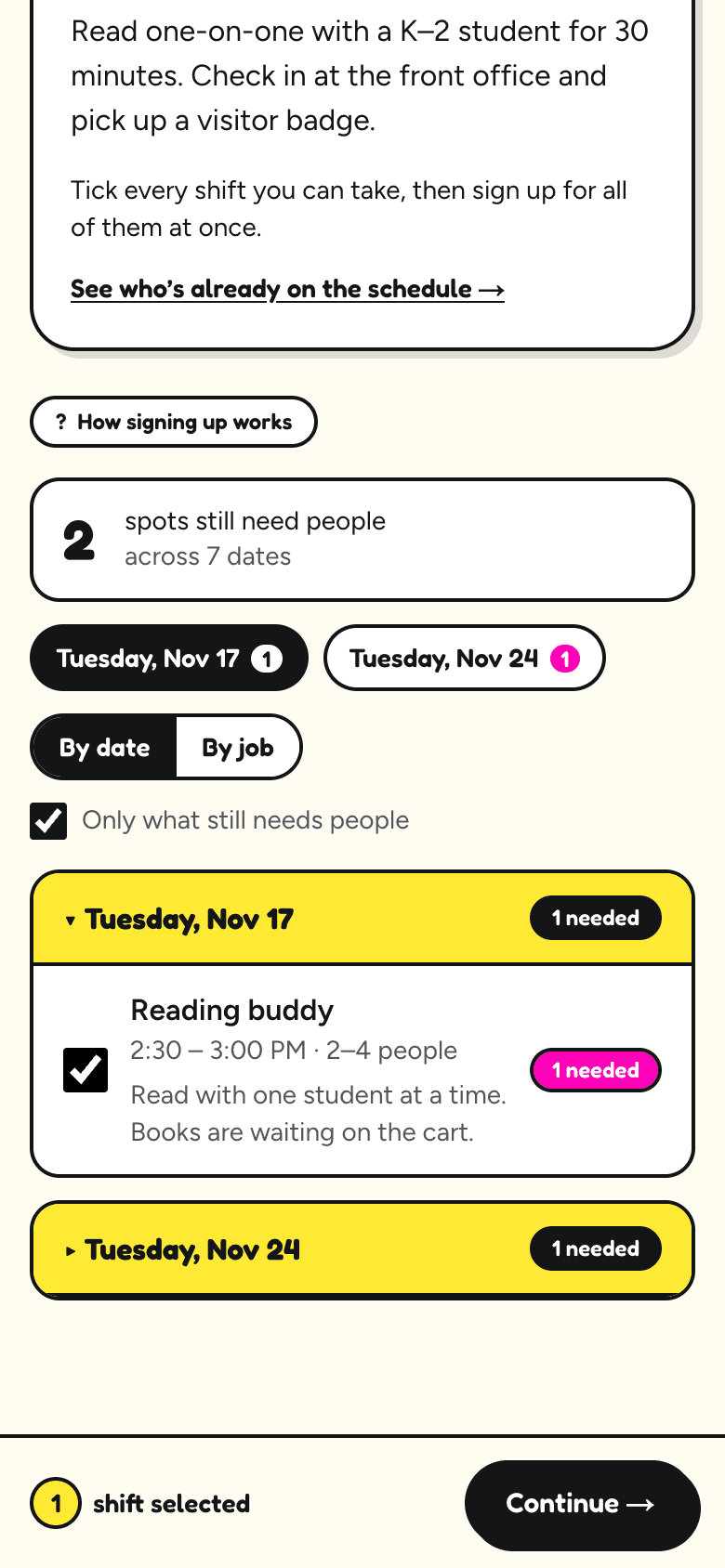
2. They tick every shift that suits them, then press Continue. 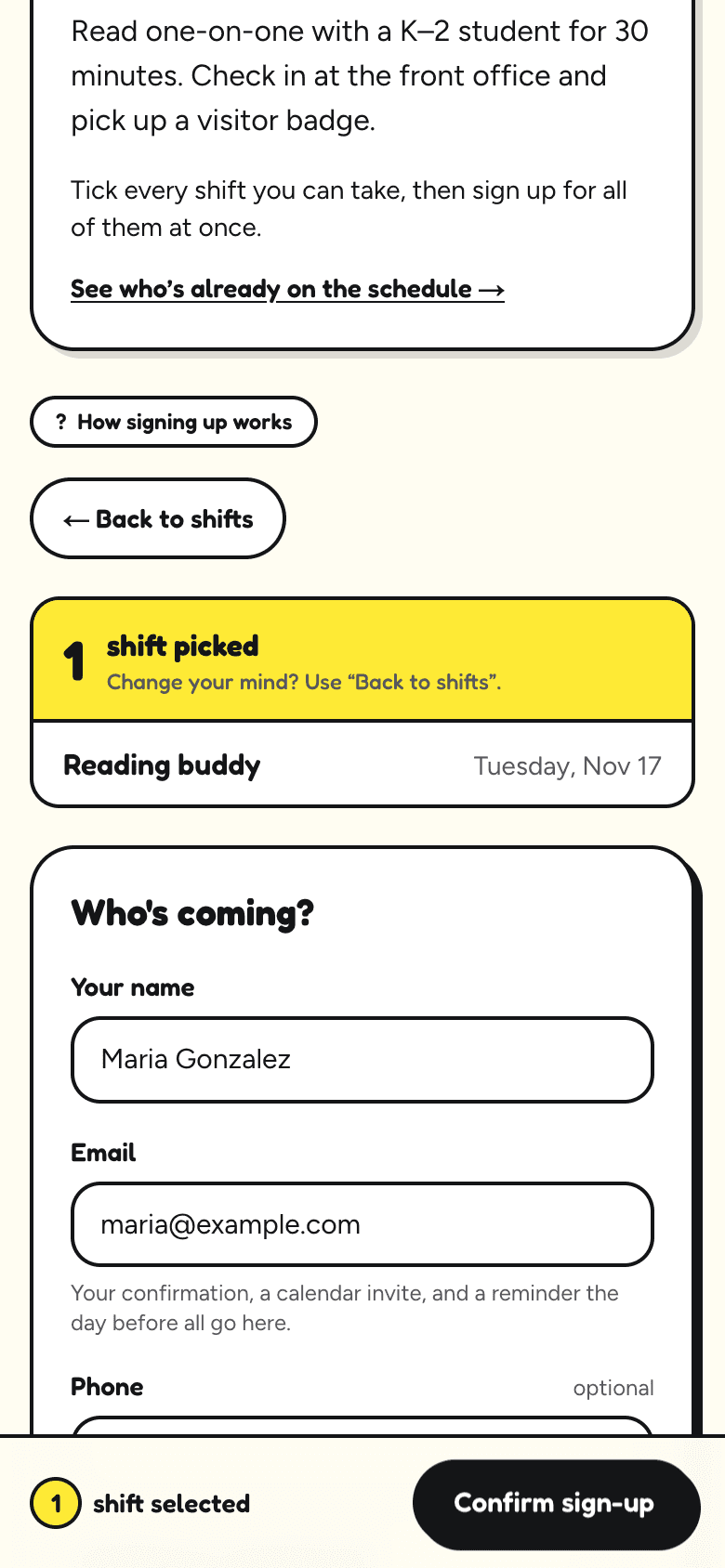
3. They type their name and email. Phone and a note are optional. 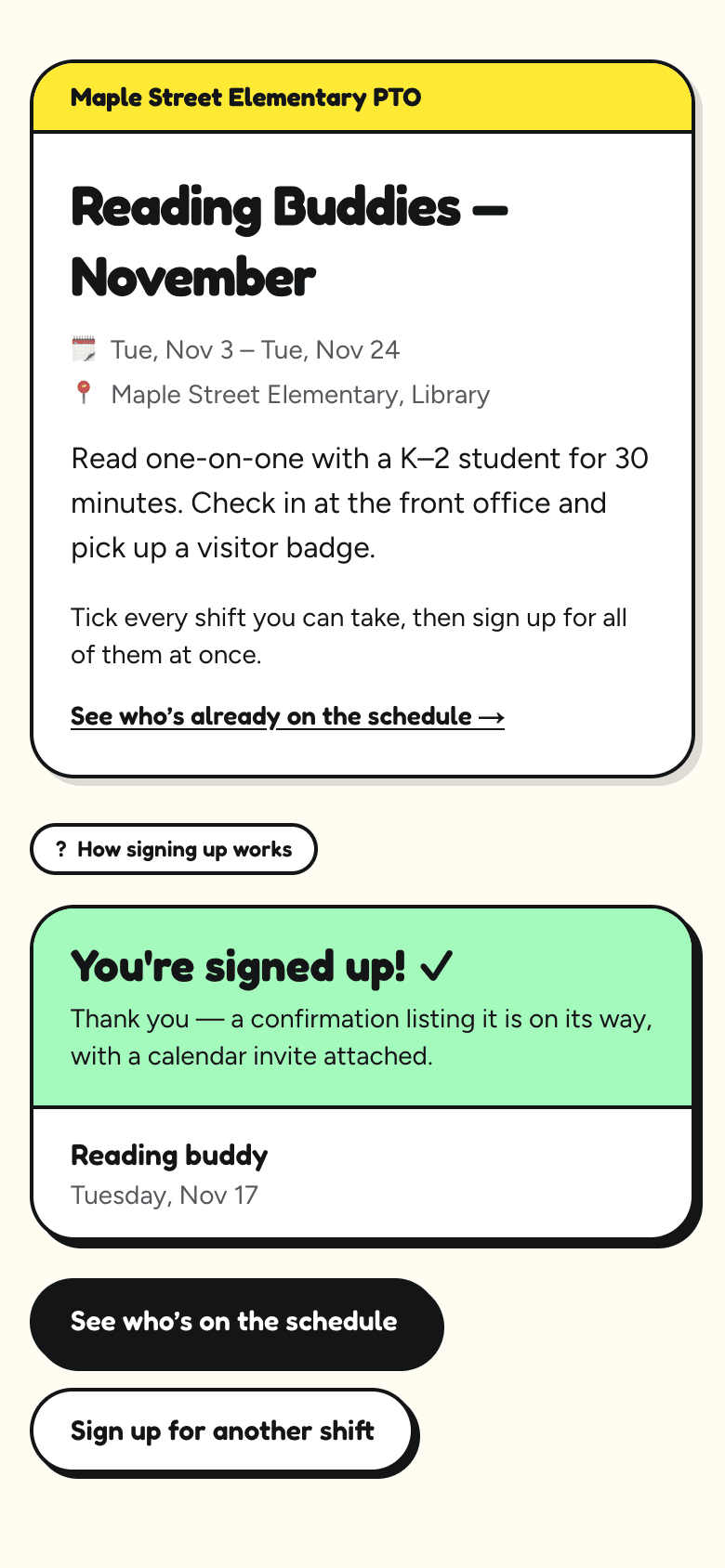
4. Done. They see what they signed up for straight away. - 5
What lands in their inbox (and yours)
- Right away: a confirmation listing their shifts, with a calendar invite attached so it lands in their phone’s calendar in one tap.
- The day before: a reminder.
- In the confirmation and the reminder: a Need a sub? link and a Cancel link, so they can sort out a change without calling you.
- For you: an email each time someone signs up, saying who and for what. When a volunteer replies to their confirmation, the reply comes to you.
- 6
Volunteers can see who else is coming
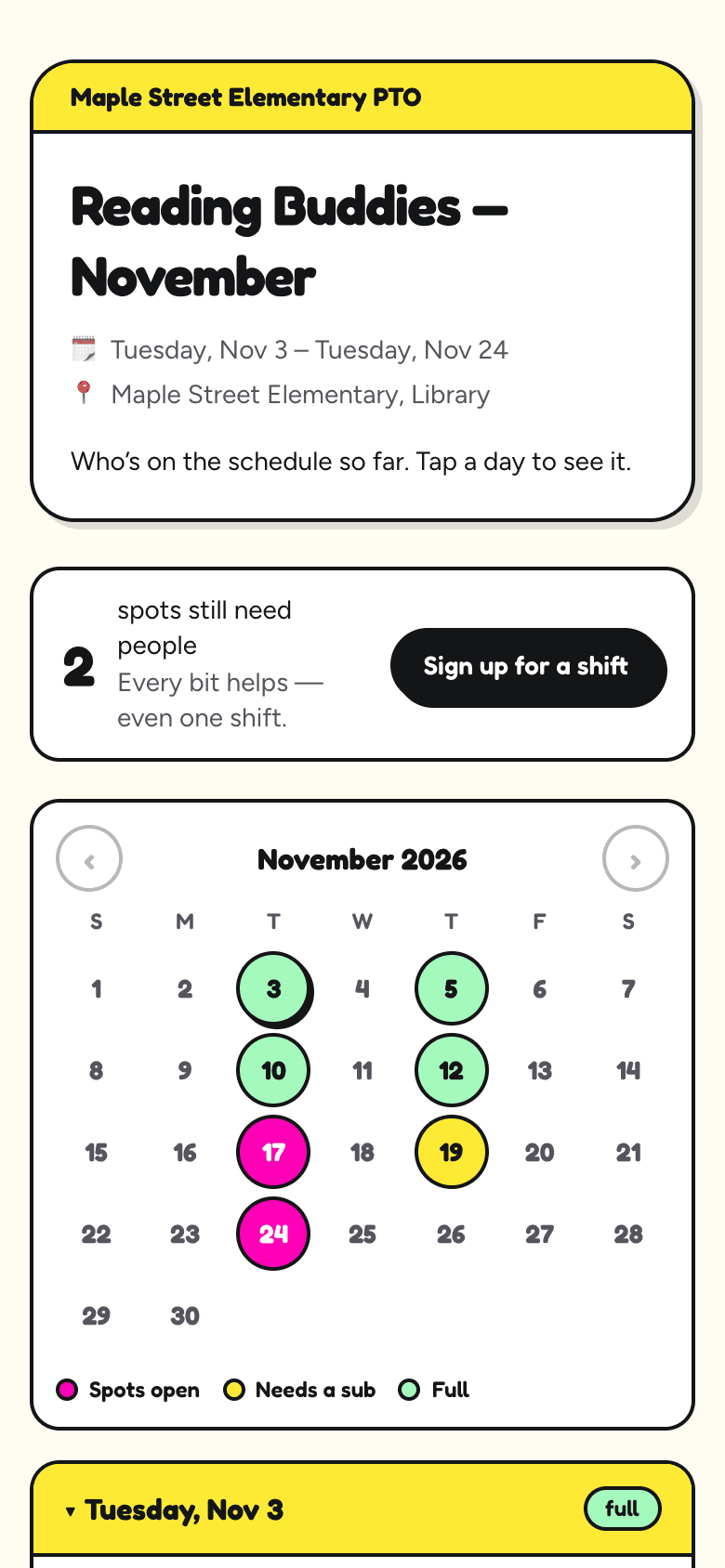
The sign-up page has a link called See who’s already on the schedule. It shows a calendar of the month and, for each day, who’s signed up. People like to know a friend is going, and it nudges others to fill the gaps.
Good to know: only names are shown there, never email addresses or phone numbers.